Building a Full-Stack Simple Contact Form: Integrating API, Web Interface, CMS, and Database with Docker Compose Multi-Container Architecture
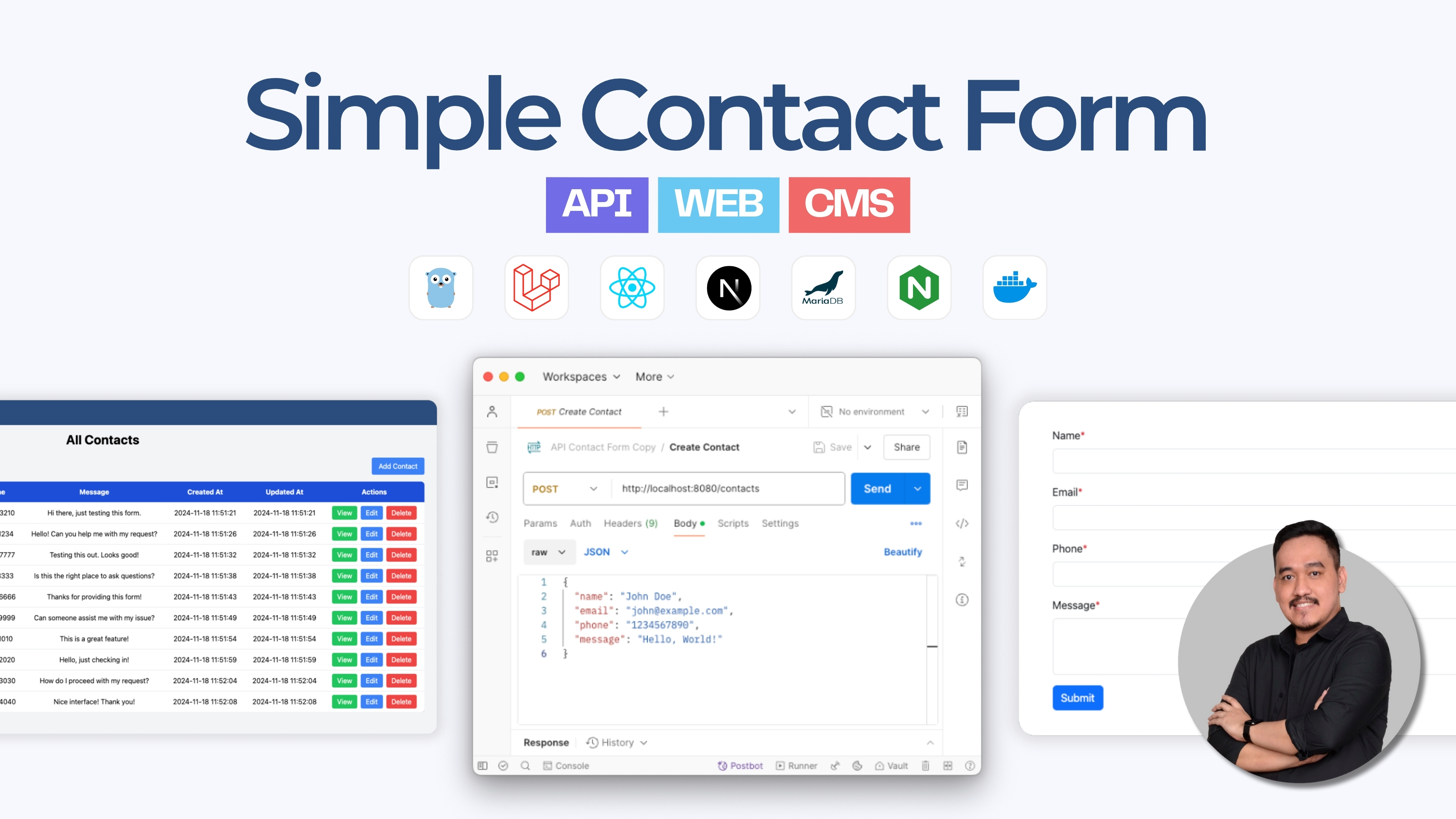
Hey, Let's Build Something Awesome!
Ready to dive into an exciting project? We're going to build a simple yet powerful contact form application from scratch.
This isn't just any contact form, it's a full-stack application that includes an API, a web interface, a CMS, and a database, all working together seamlessly.
And the best part? We'll orchestrate everything using Docker Compose in a multi-container setup.
The Game Plan
Our project is split into three parts. Before we assemble everything, we'll build each component individually:
Part 1: Build the API
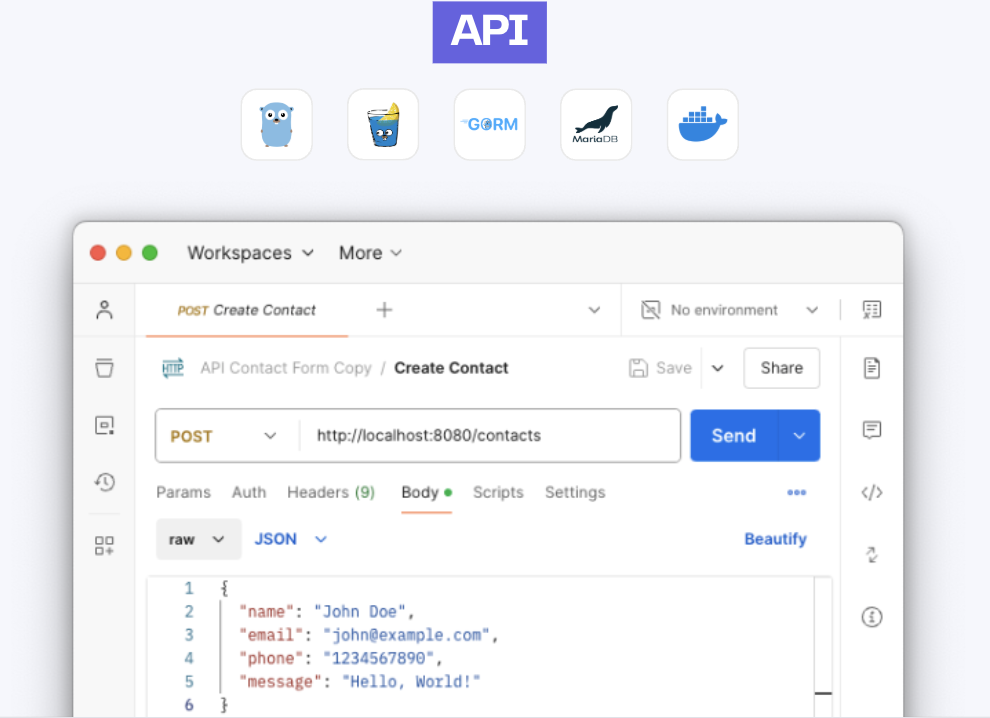
- What You'll Do: Create a RESTful API using Golang, the Gin framework, GORM, and MariaDB.
- Why It's Cool: This API will handle all the backend logic for our contact form, processing submissions and interacting with the database.
- Check out Part 1 here:
Part 2: Develop the Web Interface

- What You'll Do: Build a sleek, user-friendly web interface using Next.js (React).
- Why It's Cool: This is where users will interact with your contact form. We'll integrate it with the API from Part 1.
- Check out Part 2 here:
Part 3: Set Up the CMS
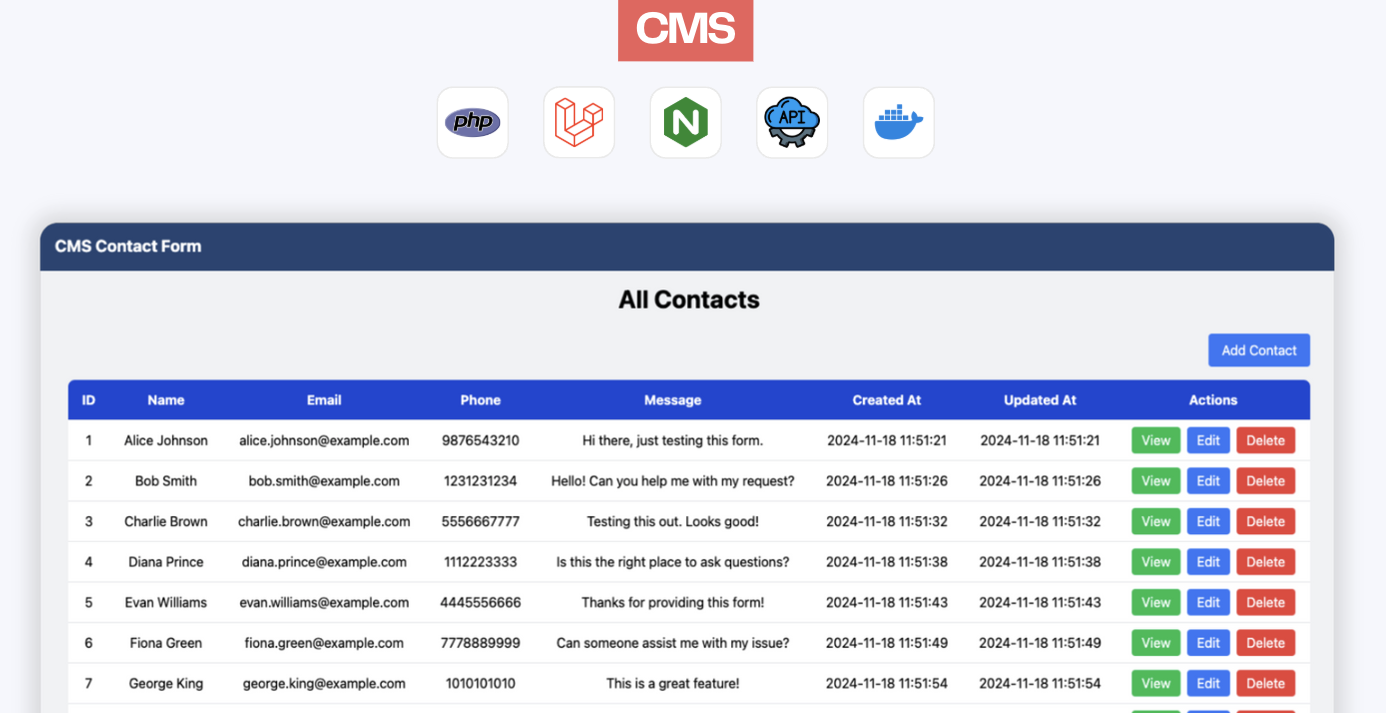
- What You'll Do: Create a CMS (Content Management System) using Laravel.
- Why It's Cool: Manage your contact form submissions easily with this powerful tool, integrated with your API.
- Check out Part 3 here:
Important: Before proceeding, make sure you've completed each part. Each component has its own Docker setup and runs independently at this stage.
Now, Let's Assemble the Puzzle
You've built each piece of the puzzle—now it's time to bring them together into a cohesive application using Docker Compose.
Step 1: Ensure You Have All Parts Ready
- Complete Parts 1 to 3:
- Build each service individually as per their respective guides.
- Each service should have its own Dockerfile and be able to run independently.
Step 2: Set Up the Project Structure
Organize your project directory as follows:
📂 contact-form-project/
├── 📂 app/
│   ├── 📂 api-contact-form/
│   ├── 📂 client-contact-form/
│   ├── 📂 cms-contact-form/
├── 📄 docker-compose.yml
├── 📄 .envapp/: Contains all your application code for the API, client, and CMS.
docker-compose.yml: The Docker Compose file we discussed.
.env: Your environment variables file.
Step 3: Aggregate Docker Compose
Docker Compose allows us to define and run multi-container Docker applications. We can configure all our services (API, web interface, CMS, database) in a single docker-compose.yml file, making it easy to manage and run everything together.
The docker-compose.yml file
Here's the Docker Compose configuration we'll use to assemble our services:
services:
  # MariaDB Service
  mariadb-contact-form:
    image: mariadb:latest
    container_name: mariadb-contact-form
    restart: on-failure
    env_file:
      - .env
    environment:
      - MYSQL_ROOT_PASSWORD=${MYSQL_ROOT_PASSWORD}
      - MYSQL_DATABASE=${MYSQL_DATABASE}
      - MYSQL_USER=${MYSQL_USER}
      - MYSQL_PASSWORD=${MYSQL_PASSWORD}
    # ports:
    #   - "${HOST_MARIADB_PORT}:${CONT_MARIADB_PORT}"
    volumes:
      - mariadb-contact-form-data:/var/lib/mysql
    networks:
      - contact-form-network-database

  # PHPMyAdmin Service
  phpmyadmin-contact-form:
    image: phpmyadmin/phpmyadmin:latest
    container_name: phpmyadmin-contact-form
    restart: on-failure
    environment:
      - PMA_HOST=mariadb-contact-form
      - PMA_PORT=${CONT_MARIADB_PORT}
    env_file:
      - .env
    ports:
      - "${HOST_PHPMYADMIN_PORT}:${CONT_PHPMYADMIN_PORT}"
    depends_on:
      - mariadb-contact-form
    networks:
      - contact-form-network-database

  # Contact Form API Service
  api-contact-form:
    build:
      context: ./app/api-contact-form
      dockerfile: Dockerfile
    image: api-contact-form:1.0.0
    container_name: api-contact-form
    restart: on-failure
    depends_on:
      - mariadb-contact-form
    env_file:
      - .env
    ports:
      - "${HOST_API_PORT}:${CONT_API_PORT}"
    environment:
      - APP_PORT=${CONT_API_PORT}
      - APP_TIMEZONE=Asia/Jakarta
      - DB_HOST=mariadb-contact-form
      - DB_PORT=${CONT_MARIADB_PORT}
      - DB_USER=${MYSQL_USER}
      - DB_PASSWORD=${MYSQL_PASSWORD}
      - DB_NAME=${MYSQL_DATABASE}
      - CORS_ALLOWED_ORIGINS=http://localhost:8081,http://localhost:8082,http://cms-contact-form:8081,http://client-contact-form:8082
      - CORS_ALLOWED_METHODS=GET,POST,PUT,DELETE,OPTIONS
      - CORS_ALLOWED_HEADERS=Origin,Content-Type,Accept,Authorization
      - CORS_ALLOW_CREDENTIALS=true
      - CORS_EXPOSE_HEADERS=Content-Length,Content-Type
    networks:
      - contact-form-network-database
      - contact-form-network-api

  # Contact Form Web, Embed UI for submiting contact form from client side
  client-contact-form:
    build:
      context: ./app/client-contact-form
      dockerfile: Dockerfile
    image: client-contact-form:1.0.0
    container_name: client-contact-form
    restart: on-failure
    ports:
      - "${HOST_CLIENT_PORT}:${CONT_CLIENT_PORT}"
    environment:
      - API_URL=http://api-contact-form:${CONT_API_PORT}
    networks:
      - contact-form-network-api

  # Contact Form CMS Service
  cms-contact-form:
    build:
      context: ./app/cms-contact-form
      dockerfile: Dockerfile
    image: cms-contact-form:1.0.0
    container_name: cms-contact-form
    restart: unless-stopped
    environment:
      - API_CONTACT_FORM_BASE_URI=http://api-contact-form:${CONT_API_PORT}/contacts
      - SESSION_DRIVER=file
    volumes:
      - ./app/cms-contact-form/docker/php/local.ini:/usr/local/etc/php/conf.d/local.ini
    depends_on:
      - nginx-cms-contact-form
    networks:
      - contact-form-network-api
      - contact-form-network-cms

  # Nginx Web Server for Contact Form CMS
  nginx-cms-contact-form:
    image: nginx:alpine
    container_name: nginx-cms-contact-form
    restart: unless-stopped
    ports:
      - "${HOST_CMS_PORT}:${CONT_CMS_PORT}"
    volumes:
      - ./app/cms-contact-form/docker/nginx/nginx.conf:/etc/nginx/conf.d/default.conf
    networks:
      - contact-form-network-cms

volumes:
  mariadb-contact-form-data:

networks:
  contact-form-network-database:
    driver: bridge
  contact-form-network-api:
    driver: bridge
  contact-form-network-cms:
    driver: bridge
Understanding the Configuration
- Services:
- mariadb-contact-form: Our MariaDB database, storing all contact form data.
- phpmyadmin-contact-form: A web interface to interact with our database.
- api-contact-form: The API handling backend logic.
- client-contact-form: The Next.js web interface for users to submit the contact form.
- cms-contact-form and nginx-cms-contact-form: The Laravel CMS and its Nginx web server.
- Networks:
- We've defined separate networks to isolate services and manage communication between them:
- contact-form-network-database: For database-related services.
- contact-form-network-api: For API communication.
- contact-form-network-cms: For the CMS and its web server.
- We've defined separate networks to isolate services and manage communication between them:
Step 4: Configure Environment Variables
Create a .env file in the root directory with the following variables:
The .env file
## THIS CONFIG FOR DOCKER-COMPOSE.YAML ONLY, NOT FOR THE APP

# Database Configuration
MYSQL_ROOT_PASSWORD=rootpassword
MYSQL_DATABASE=contactsdb
MYSQL_USER=user
MYSQL_PASSWORD=password

# Port Mapping Configuration
HOST_MARIADB_PORT=3306
CONT_MARIADB_PORT=3306

HOST_PHPMYADMIN_PORT=8011
CONT_PHPMYADMIN_PORT=80

HOST_API_PORT=8080
CONT_API_PORT=8080

HOST_CMS_PORT=8081
CONT_CMS_PORT=80

HOST_CLIENT_PORT=8082
CONT_CLIENT_PORT=3000
Step 4: Build and Run the Services
In your terminal, navigate to the root directory and run:
docker compose up -d- Docker Compose will start all services defined in your
docker-compose.yml.
Step 5: Verify Everything is Running
- API Service: Visit
http://localhost:8080to check if the API is up.
- Web Interface: Go to
http://localhost:8082to see the contact form.
- CMS: Access the CMS at
http://localhost:8081.
- phpMyAdmin: Manage your database at
http://localhost:8011.
Step 6: Test the Application
- Submit a contact form through the web interface.
- Check if the data appears in the CMS and the database.
What's Next?
Now that you've assembled your full-stack application, here are some ideas to enhance it:
- Implement Authentication: Secure your CMS with user authentication.
- Add Validation: Ensure that only valid data is accepted by your API.
- Deploy to Production: Consider deploying your application to a cloud service.
- Continuous Integration: Set up a CI/CD pipeline for automated testing and deployment.
Conclusion
Congratulations! You've built a fully functional contact form application from scratch, integrating multiple technologies and services using Docker Compose. You've learned how to:
- Build and containerize services individually.
- Configure and use Docker Compose to orchestrate multiple containers.
- Connect services via Docker networks.
Now, take a moment to appreciate what you've accomplished. Building such a complex system from scratch is no small feat!